Spritehandler 2
Deprecated
Spritehandler 2 has now, as of Blender 5.2, ceased development. It is recommended that users switch to Spritehandler 3 when that is out of alpha.
Available on Superhive (ex: Blendermarket)
Feature Overview
Using Sheets
- Sheet sequencer shader node group for using spritesheets and texture atlases in rendering.
- A shortcut to create a value shader node and animate it to match the current scene frame.
- Conversion of sheets to rough geometry to minimize overdraw. Great for use as particles.
Creating Sheets
- Create sheets from a selection of files.
- Create sheets automatically after rendering a sequence.
- Automatically cell padding for different sized images. Options to anchor cell content.
- Optional per axis padding.
Helper Function
- Cleanup mesh data by removing small islands based on their area.
- Set the bounding box of selected objects to their local bounding box corners/edges
Installation
Installation of Spritehandler is the same as any other addon. See official Blender documentation for full instructions if required. Blender Addons
Spritesheet Creation Guide
Creating spritesheets with Spritehandler is done through a panel in the toolshelf of the Image Editor. The default key-bind toggle the toolshelf is 'N'. Alternatively you can click and drag the small arrow on the upper right. After opening the Spritehandler panel, there are two methods for creating a spritesheet and a list of parameters for the resulting spritesheet.
The 'Spritesheet from Files' button will allow the selection of on disk images to create a spritehsheet. Images do not need to be the same size.
The 'Sheet from Render' toggle will cause Spritehandler to automatically create a spritesheet once an animation render is completed. Video output is not supported.
After creating a spritesheet, you can edit it without needing to re-select the files or re-render.
For convenience, the addon also includes an image resizing function. Unlike the normal Blender image resize option, the Spritehandler resizer offers a selection of filters. Use the Nearest filter when working on pixel art.# Spritesheet Usage There are two general methods for Spritehandler to make use of spritesheets. Spritesheets (and Atlases) are expected to be uniform, thought the meshing tool will work on any image with an alpha.
1. The Sequencer Node Group
Eevee Compatibility
The sequencer node is likely unreliable in Eevee. Due to either an Eevee bug or an engine limitation the node group index will occasionally show the wrong frame. This appears mostly when using the node with the addons time node. I hope that in time Eevee will work reliably, but it's out of my control for now."
There are many ways the sequencer node group can be used, but the most basic form is through the add sequencer object option. For more complex uses, please refer to the demo files. Start by selecting a spritesheet to be used for sequencing. Using the add sequencer operator, found in the add menu, we're able to quickly setup the sheet inside a new material on a mesh that respects its aspect ratio. There are a few presets that'll setup the sequencer node group for different uses. The edit button can be used to recover the spritesheet creation dialogue box on a selected object.
2. Meshing Based on Alpha
Spritehandler can be used to generate mesh object based on the alpha channel of image. By specifying the cell counts, the operator can output individual objects in a new collection. The primary purpose of meshing images is for instancing, wether with Geometry Nodes, Particles, or Dupliverts/Duplifaces. By creating a rough representation of the geometry, rather that using a simple plane with alpha, fewer transparency paths are required in rendering and render times are drastically reduced.
Interface Panel Contents
Image Editor Panel
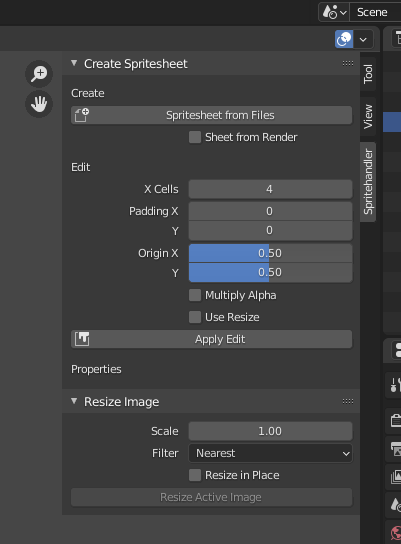
| Create | Spritesheet Creation |
|---|---|
| Spritesheet from Files | Open's a file browser to select files to create a spritesheet from |
| Sheet from Render | When enabled, a spritesheet will automatically be create after rendering frame sequence |
| Edit | Spritesheet Editing |
|---|---|
| X Cells | How many horizontal cells to use |
| Padding X/Y | Per axis pixel padding for each cell |
| Origin X/Y | Normalized per axis origin adjustment of individual cells |
| Multiply Alpha | Wether to multiple color channels by Alpha |
| Use Resize | If enabled, the active image will be resized after creation/edit |
| Apply Edit | Regenerate active spritesheet image with the current values |
| Resize Image | Filtered Image Resizing |
|---|---|
| Scale | Factor by which to scale the image |
| Filter | Pixel filter to use. For pixel art, use Nearest. |
| Resize in Place | Toggle destructive resizing of image. Otherwise a copy is made |
View 3D Panel
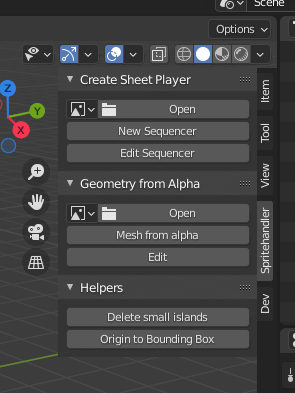
Create
| Create Sheet Player | Create Geometry for using Spritesheets |
|---|---|
| Image Selector | Select the spritesheet to use on the new sequencer mesh |
| New Sequencer | Create a plane and assign a new material with the player node group and chosen image |
| Edit Sequencer | Edit a previously created sequencer mesh |
Geometry From Alpha
| Geometry from Alpha | Create Geometry from Spritesheet Alphas |
|---|---|
| Image Selector | Select the image to use for creating the new geometry |
| Mesh from Alpha | Generate geometry from the alpha channel of the selected image |
| Mesh from Alpha | Edit/Regenerate geometry from image alpha |
Helper Operators
| Helpers | Convenience Functions |
|---|---|
| Delete Small Islands | A cleanup tool to delete small polygon islands based on their area. |
| Origin to Bounding Box | Set the origins for all selected geometry to a chosen bounding box point, or point average. |
{{% /tab %}} {{< /tabs >}}